6.9. Object finder
The object finder widget is a tool which provides the quick search of objects over the model. This feature is very useful when the working model has a huge load of objects being almost impossible to easily locate a specific item using the conventional model objects widget or the available navigation tools. This widget works like an ordinary text search being possible to filter results by object type and name but also can highlight objects in different ways to identify their location on the database model.
The objects are scanned by using a name pattern which can be a fixed string, a wildcard string or a regular expression in the form accepted by the Qt framework. Once listed the results are retrieved the user can interact with the items by double-clicking them to open the respective properties dialog or highlight it on the model if the proper option is checked. Details about fields and controls of the widget are described as following.
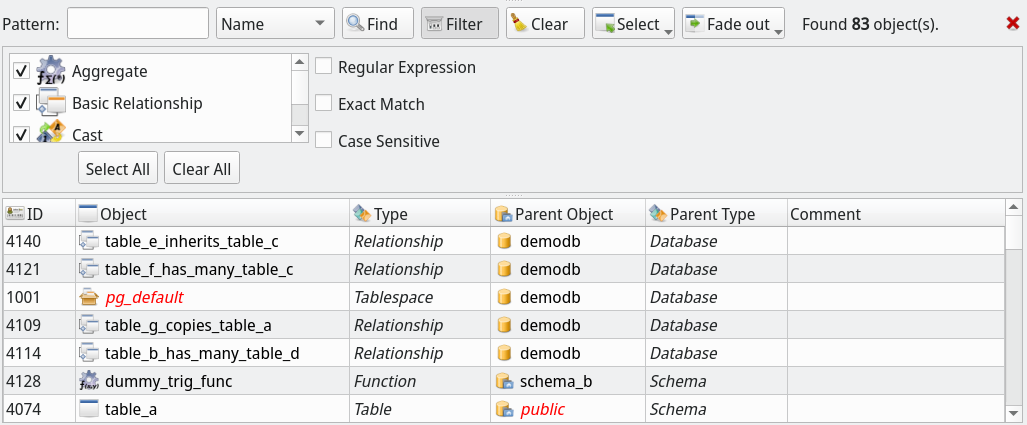
| Action/Option | Description |
|---|---|
Pattern | The keyword that will be matched against the object's names when searching them. |
Filtered attribute | The name of the attribute in which the pattern must be matched. Currently the object searching can operate over the following objects' attributes: name, comment, signature, schema, owner, tablespace, data type and return type. |
Find | This button performs the search. Once finished the result is displayed on the grid at the bottom of the widget. |
Filter | This button toggles the search filter options. The filter involves the kind of objects to be searched as well some pattern matching options. |
Clear | This button simply clears the result grid in order to start a new search. |
Select | Selects the objects by two distinct conditions: Listed and Not listed. The first will cause the objects on the result grid to be selected, as opposite, the second option causes the objects not listed on the results grid to be selected on the canvas. |
Fade out | Fades out the objects by two distinct conditions: Listed and Not listed. The first will cause the objects on the result grid to be faded out, as opposite, the second option causes the objects not listed on the results grid to be faded out on the canvas. |
Regular Expression | This option enables the pattern to be interpreted as a regular expression. |
Exact Match | This option indicates to the searcher to select only those objects which name completely matches the pattern. |
Case Sensitive | This option enables the search to consider the upper or lower case when matching names. For instance, let's say we have two objects named object_a and OBJECT_A, if we search them by using the pattern obj* with the case sensitive option checked only the first object will be returned this because despite the names being the same for us, for the searching process they are completely different due the upper case characters on the second object's name. |
Select All | Selects all the objects types on the filter. Every time you modify the selection on the object type filter you need to do a new search in order to apply this change. |
Clear All | Clears the selection on the object type filter. |
References
** Qt framework regular expressions **