5.1. Export a model
The exporting process consists in translate the database model objects into different formats. Currently, pgModeler is capable of exporting the model to PNG and SVG formats which can be useful for documentation purposes, to a SQL script file that can be used in a later execution, to a data dictionary in HTML format and directly to a database server. For this last modality, it is highly recommended that a backup of the database is made before start the exporting process because there may be data loss in some circumstances.
5.1.1. Export to database server
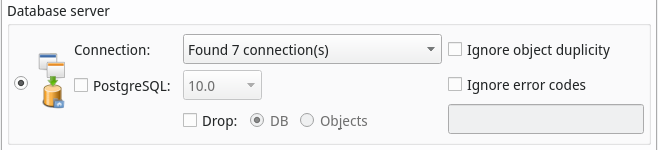
| Field/Option | Description |
|---|---|
Connection | This combo holds the connections to be used in the export process. |
PostgreSQL | This field specifies the PostgreSQL version in which the SQL code should be generated. It is recommended to select this option only when the version of the DBMS, somehow, is not identifiable or if you need to generate a specific version of SQL code for test purposes. |
Drop | Causes objects to be dropped before or during the process. If DB is checked pgModeler will destroy the database if already exists on the server and then start the export. When Objects is checked pgModeler will execute the DROP command attached to SQL-enabled objects. This option leads to data loss so make sure to have a backup before exporting. |
Ignore object duplicity | This option makes pgModeler ignore errors generated by duplicated objects and creates only those ones which do not exist in the database. This option may be used when an object was created after a previous model export. Note that this option acts differently from the modeldatabase diff because only new objects are created on the server. If there are objects that were only modified in some attributes they will continue not being created or updated on the server. In that case, you'll need to use the model-database diff feature. |
Ignore error codes | This advanced option causes pgModeler to ignore extra errors by their numeric codes. These errors must be informed in the input below and separated by space. For the complete list of error codes check the PostgreSQL docs, section Appendix A. PostgreSQL Error Codes. Use this option with extreme care since it can interfere with the final export result. |
5.1.2. Export to SQL file

| Field/Option | Description |
|---|---|
File | The output file which will store all the generated DDL commands. |
PostgreSQL | This option is used to define the PostgreSQL version of the generated SQL file. Unlike exporting to the database server, this option is mandatory here because pgModeler doesn't know how to identify the proper version just from the database model metadata information. |
5.1.3. Export to PNG or SVG
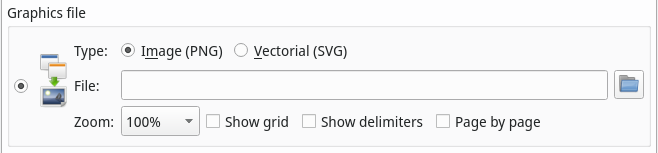
| Field/Option | Description |
|---|---|
Type | The type of graphics being generated: PNG or SVG. |
File | The output file which will store the graphical representation of the model. |
Zoom | Causes pgModeler to apply a zoom factor before generating the image file. This option is useful when you need to create a high resolution PNG file by setting up a zoom factor of more than 100%. |
Show grid | Enables the orientation grid to be included in the output graphics file. |
Show delimiters | Enables the page delimiters to be included in the output graphics file. |
Page by page | Exporting the model page by page will generate files with a _p[n] suffix where n is the page id. Check if the current user has write permission over the output folder. The page dimensions and amount are directly linked to the current page settings. Refer to section Printing & Code in the previous chapter to get details about page configuration. |
5.1.4. Export to data dictionary

| Field/Option | Description |
|---|---|
Mode | Standalone makes pgModeler generate a single HTML file containing the data dictionaries of all tables in the database model. Split causes the data dictionaries to be generated in separated files inside the selected directory. In this mode, the files are named in the format schema.table.html. |
Output | The output file or directory in which the data dictionary will be stored. |
Include index | pgModeler will generate an index to help navigate through the data dictionary. If split mode is set then a separated file named index.html will be saved into the destination folder. |
Once selected the export mode and configured all desired options you just need to click the Export button and wait for the progress in the Output tab. If no error was raised you can close the dialog or start a new exporting process.
References
PostgreSQL Error Codes
https://www.postgresql.org/docs/current/static/errcodes-appendix.html