6.15. Layers management
The layers management allows the user to move graphical objects to specific layers in order to create a contextualization between them or even to improve the model's visualization when the set of objects is too large to fit the entire canvas for instance. The created layers can be quickly toggled causing all objects associated with them to be shown or hidden. The sample image below shows a model which contains 6 layers (Default, Tables, Relationships, Textboxes, and Schemas), note that unchecking layers cause the related objects to disappear diminishing the number of objects currently visible on the screen.
Layers are not global entities which means that the loaded database models can have a different set of layers according to the context of each one. The user is free to add or remove the number of layers needed in a model but the Default layer is the only one that is protected against renaming and removal since it is used to store objects from other layers that are destroyed. Layer names must contain the following characters [a-z][A-Z] - _ space any other special character will be replaced by _. To change the objects' layers just right-click over the selected object in the canvas and hit the action Quick > Move to layer.
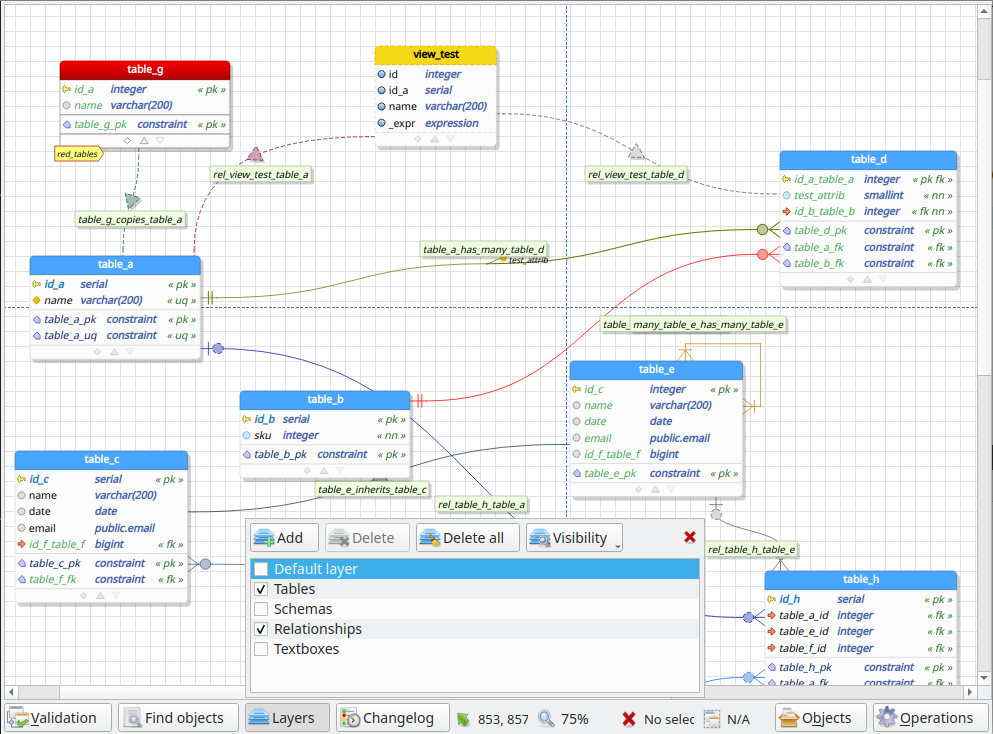
| Field/Option | Description |
|---|---|
Add | Add a new layer in the database model. |
Delete | Delete the selected layer. Objects assigned to the destroyed layer will be moved to Default layer. |
Delete all | Delete all layers created by the user. Objects assigned to the destroyed layers will be moved to Default layer. |
Visibility | This button toggles the visibility of all layers at once. |
Layers listing | This listing holds all layers added by the user. The checkboxes aside every layer name is used to toggle the visibility of the objects assigned to it. |