1.2.4. Layers management
The layers management, toggled via the button 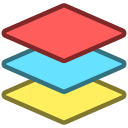 Layers at the bottom-left portion of the design view, allows the user to move graphical objects to multiple layers to create a contextualization between them or even to improve the model's visualization when the set of objects is too large to fit the entire canvas, for instance. The created layers can be quickly toggled, causing all objects associated with them to be shown or hidden. The user has the option to display layer names as well as colored rectangles around the objects that are within a certain layer. Layer rectangles around objects are currently available only for tables, views, and textboxes, and they are stacked around the objects if they belong to two or more layers. In the image below, the widget is marked with 1 and the button that toggles it with 2. The sample model contains 2 layers (Default layer and rels), and the options Display layer rectangles and Display layer names are checked, so the rectangle and the name of the layer appear around each table, view, and text box.