2.1. Basic fields
In almost all editing forms we have common fields like the ones shown in the image. Basically, the fields name and comment are present in all forms and the rest will be visible depending on the type of the object being handled. Bold field names with a red asterisk indicate required attributes and the user must inform values for them otherwise the code generation will fail.
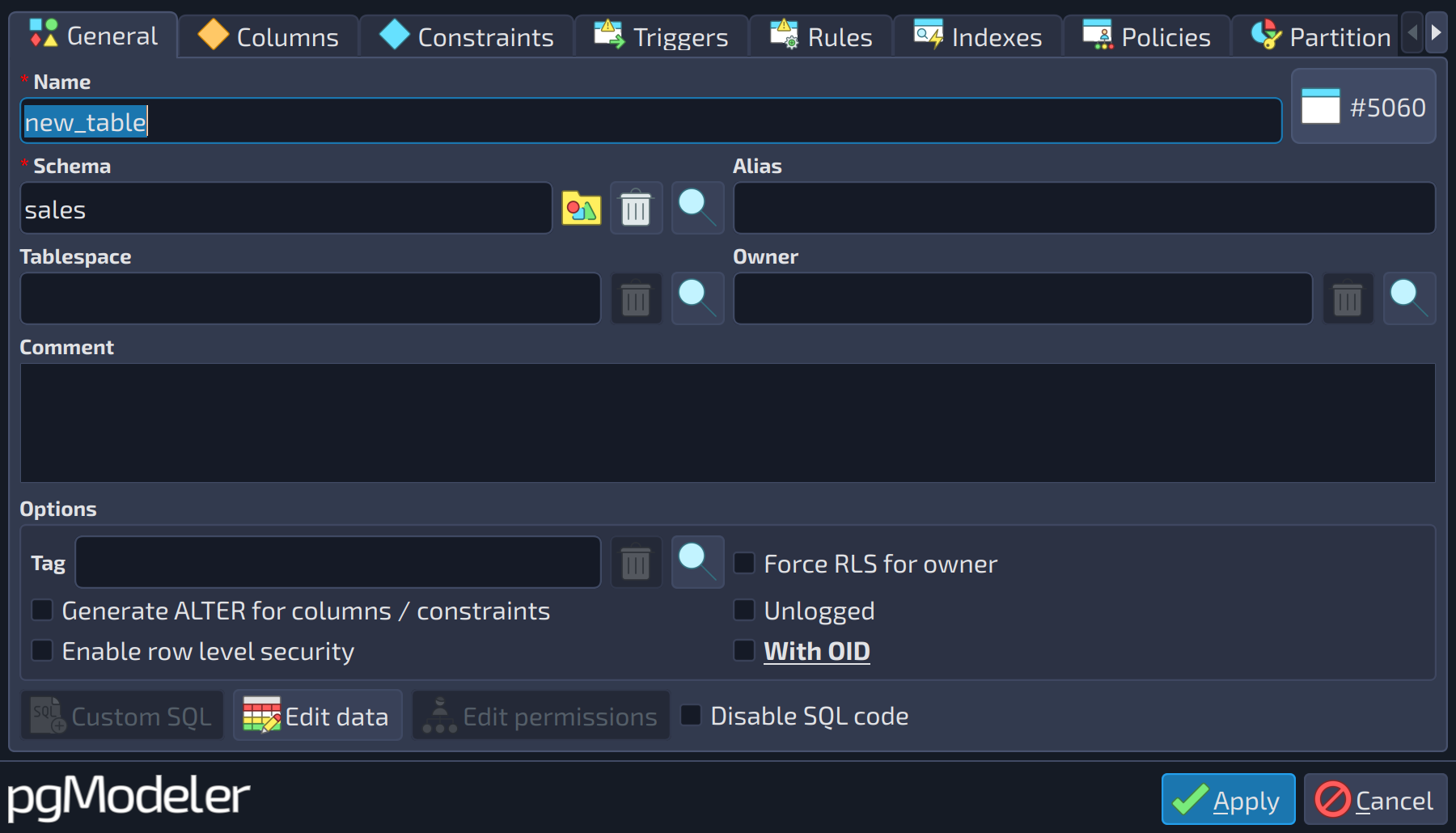 123456789
| Basic fields | ||
|---|---|---|
| # | Field | Description |
| 1 | Name | The name of the object. It obeys the PostgreSQL rule for object naming, which accepts up to 63-byte-long names in a default installation. The only exceptions are casts, whose name is generated automatically by pgModeler, and operators, whose names must be composed of the characters |
| 2 | Schema | The schema that holds the object. This is an object picker: the name can't be typed, it is chosen with the buttons at its right. |
| 3 | Tablespace | The tablespace where the object is stored. An object picker, like the schema. |
| 4 | Owner | The role that owns the object. An object picker, like the schema. |
| 5 | Comment | A free text comment about the object, present in all forms. It is exported as a |
| 6 | Edit data | Used to add initial data to a table, which is converted into |
| 7 | Custom SQL | Appends or prepends arbitrary DDL or DML commands to the object's SQL definition (details in section Custom SQL commands). |
| 8 | Edit permissions | Used to create custom permissions for the object (more details in section Permissions, in Chapter 3: Database objects). |
| 9 | Disable SQL code | Deactivates the generation of SQL code for the current object (and for its references, if the user confirms the displayed message box). It is useful when an object is created only as a reference to others: the DDL commands related to it are still generated, but commented out. |
The field name obeys the PostgreSQL rule for object naming, which accepts up to 63-byte-long names in a default installation. The only exception here is for cast and operator objects. For cast objects, the name can't be assigned by the user because pgModeler is responsible for automatically generating the object's name, and for the operators, a special rule must be followed: operator names must be composed of one or more of the following characters + - * / < > = ~ ! @ # % ^ & | ` ? (details at PostgreSQL documentation).
You can use some special characters in the middle of the object's name, but bear in mind that in some cases, it'll trigger the quoted identifier mechanism to correctly identify the objects in the SQL code. An important note about object naming is that pgModeler does not fully support the quoted identifier notation. When using quoted identifiers, only the following characters are accepted in the middle of names: a-z A-Z 0-9 _ . @ $ - / \ space. In addition, any other UTF-8 character that describes a letter or word in another language is accepted in the objects' names, but it also forces the use of the quoted identifier notation.
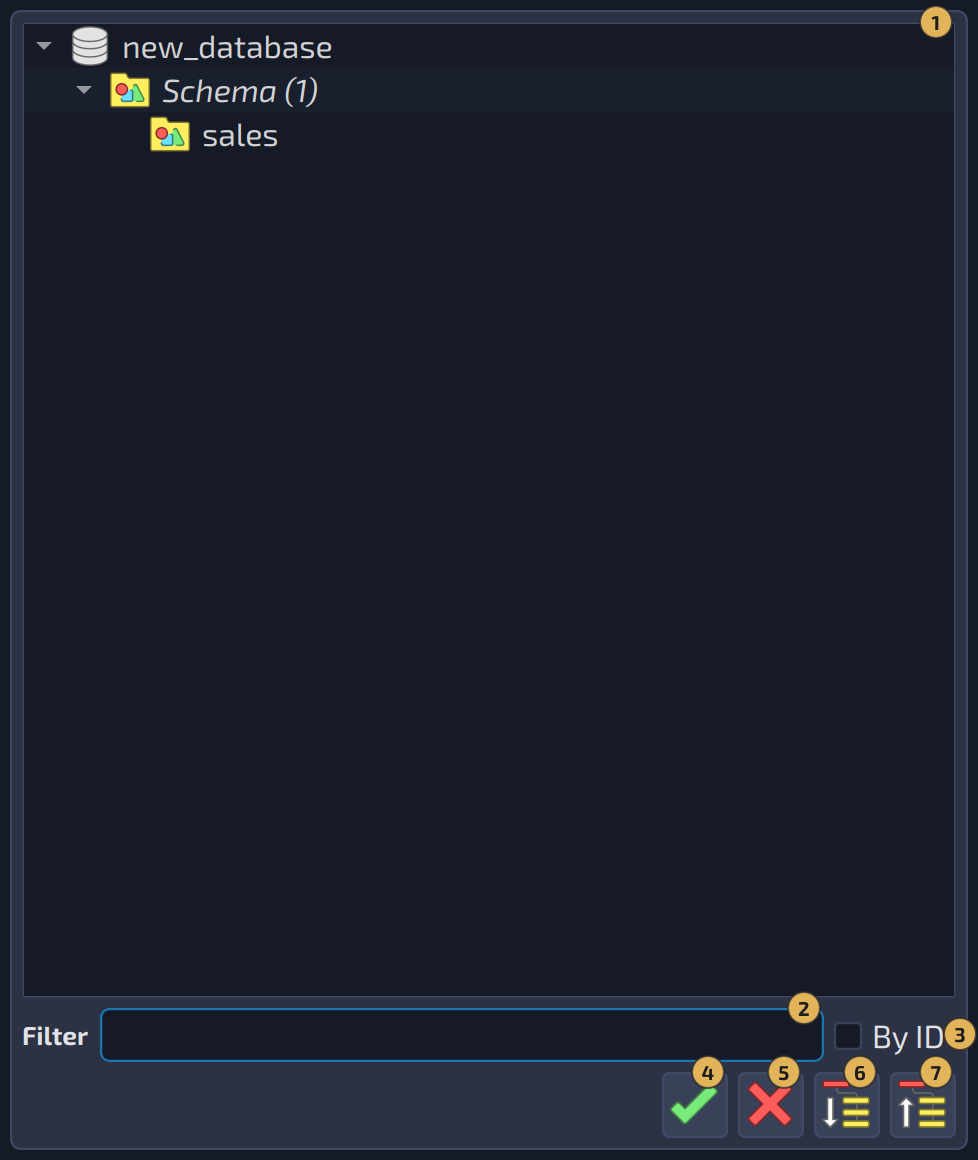
The fields schema, tablespace, and owner are object pickers, which means that the user can't manually input the name of the desired object. This kind of field is very common throughout pgModeler's editing forms and to select the desired object the user must click  to show the object selection dialog (as seen in the next image; details about this dialog can be found in Chapter 6: Advanced tools). To clear the field, just click the button
  .
.
In the first image above, we also have the buttons Edit data  (only for tables), Custom SQL
  , Edit permissions
  , and the check box Disable SQL code. The first button is used to add initial data to a table, which is converted into
 INSERT commands during the generation of SQL code. The second button appends or prepends arbitrary DDL or DML commands in the object's SQL definition (details in section Custom SQL commands, further in this chapter). The third one is used to create custom permissions for the object (more details can be seen in section Permissions in Chapter 3: Database objects). Finally, the option Disable SQL code can be used to deactivate the generation of SQL code for the current object (and for its references if the user confirms the displayed message box). This is useful when you need to create an object only as a reference to others and then at the moment of exporting the model to SQL all DDL commands related to that object will be generated but they will be disabled through SQL comments.
Editing forms also protect your work against accidental closing: when some field was modified and the form is closed through Esc, the button Cancel, or the close button of the window, pgModeler asks "Some fields in the form were modified! Do you really want to close and discard changes?" before throwing the changes away.
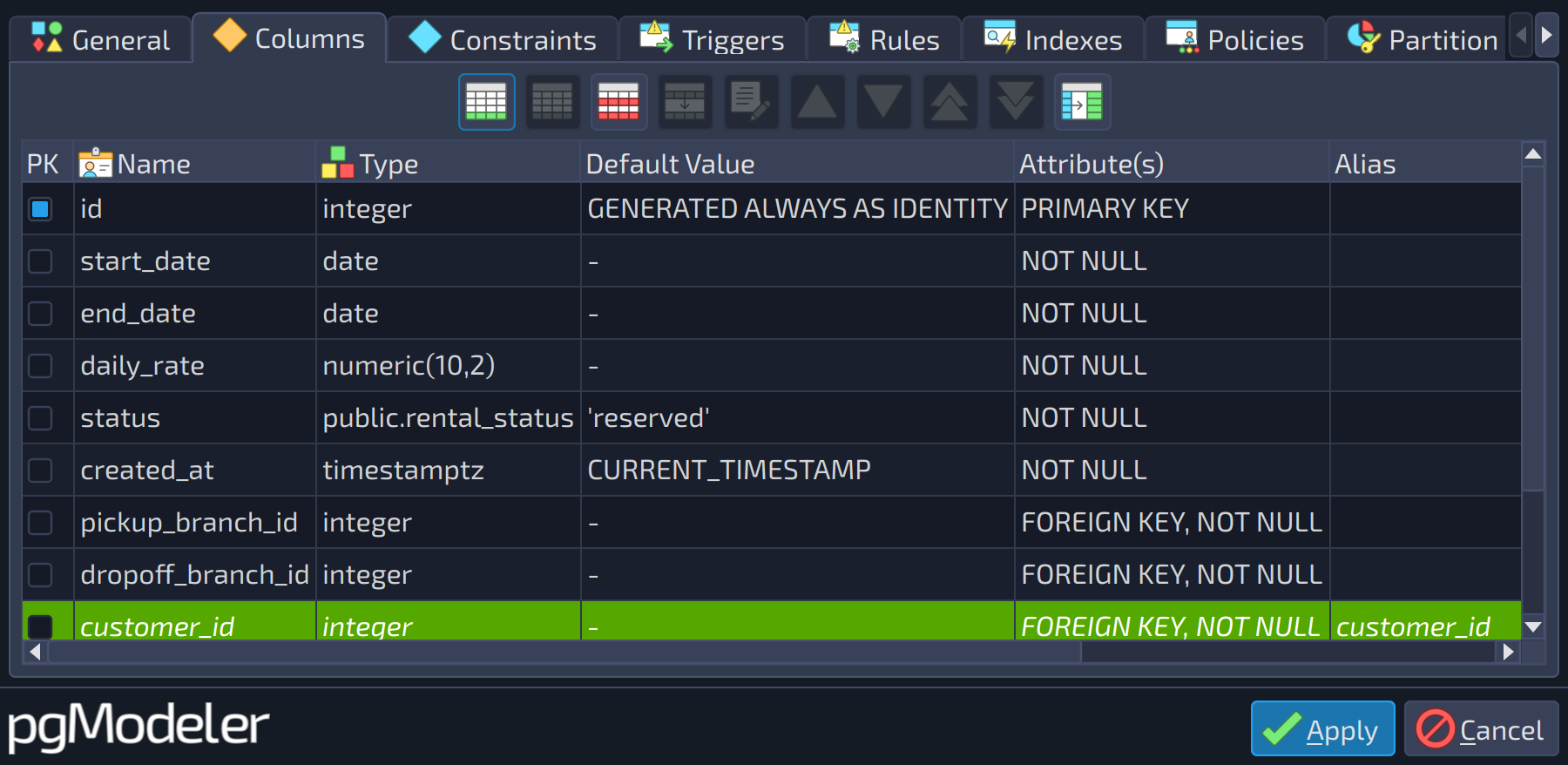
Another control that the users will often see in pgModeler's dialogs is the object's grid. This widget works as a regular data grid, and its features are described below. The available control buttons and columns may vary depending on the kind of object being handled by the widget.
 1
1
| Columns | ||
|---|---|---|
| # | Field | Description |
| 1 | Columns | The columns of the object (primary key mark, name, type, default value, attributes, alias, and comment). Use the buttons beside the list to add |
The first two buttons 
 are used respectively to add or delete items from the grid, and they can be triggered with shortcuts
 Ins and Del. The next button is  and its function is to erase all items from the grid, the shortcut for this button is
 Shift + Del. The next item (not listed in the image above)  is the update button, and its behavior may vary from dialog to dialog but basically, it will do updates in the object's attributes when clicked or the shortcut
 Alt + R is triggered. The duplication action, denoted by the icon  , with the shortcut
 Ctrl + D, causes the selected item(s) to be duplicated in the grid. The button  is used to activate the editing on the selected element, and it can be triggered by the shortcut key
 Space.
There are also four moving buttons 


 . The first two single arrow buttons, activated respectively by
 Ctrl + Up and Ctrl + Down, are used to move one row up or down the selected item in the grid. The last two double arrow buttons can be triggered by the Ctrl + Home and Ctrl + End, and their actions are to move the selected item to the first or last row of the grid. Finally, the button  , when activated, causes all the columns to have their width adjusted to the size of the contents.
References
PostgreSQL identifiers syntax
https://www.postgresql.org/docs/current/sql-syntax-lexical.html#SQL-SYNTAX-IDENTIFIERS