5.1. Export a model
The exporting process consists of translating the database model objects into different formats. Currently, pgModeler is capable of exporting the model to PNG and SVG formats which can be useful for documentation purposes, to SQL script files that can be used in a later execution, to a data dictionary in HTML or Markdown format, and directly to a database server. For this last modality, it is highly recommended that a backup of the database be made before starting the exporting process because there may be data loss in some circumstances.
Export to database server
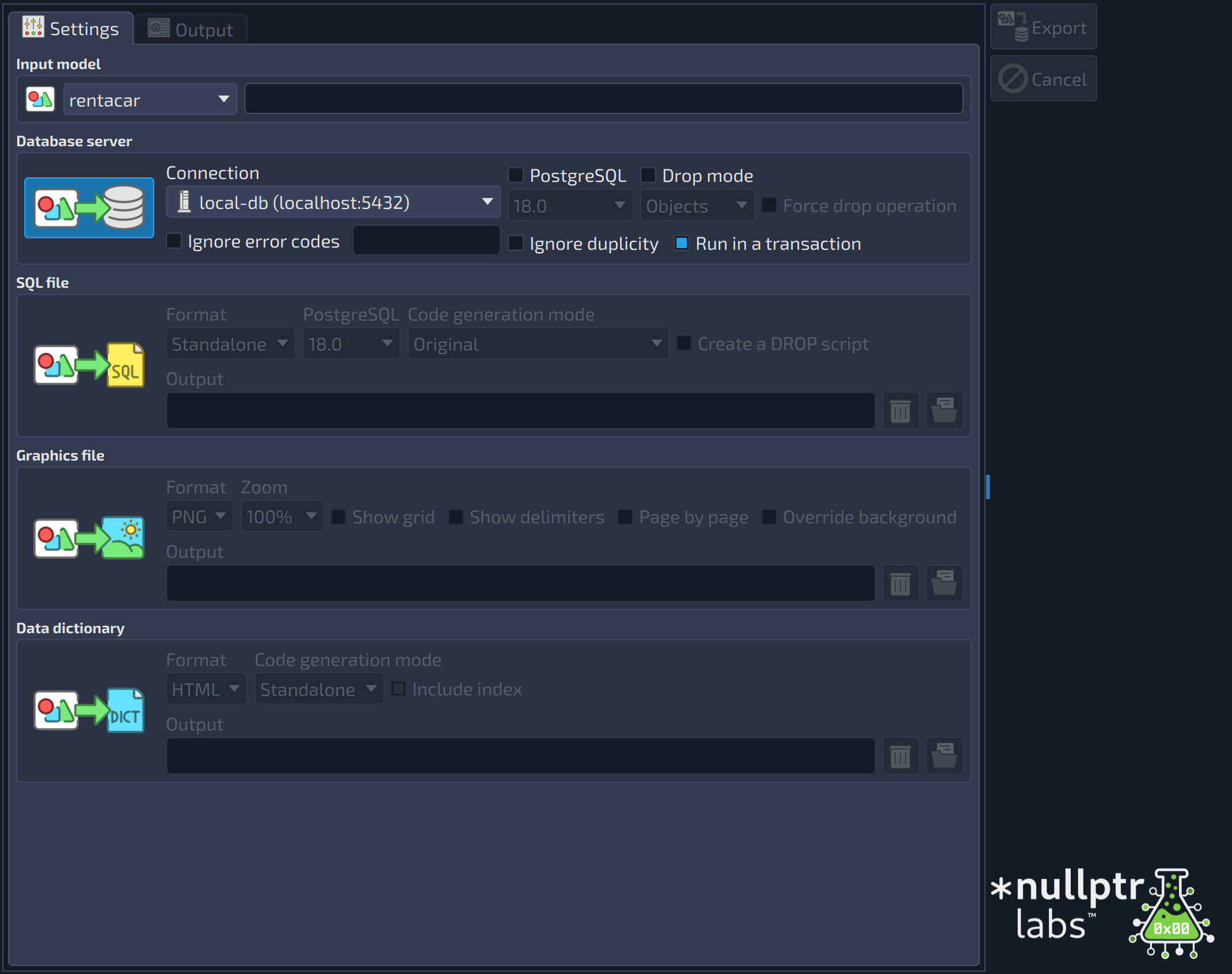 123456789101112131415
| Export | ||
|---|---|---|
| # | Field | Description |
| 1 | Export | Starts the export process using the mode whose group box is enabled. The progress is displayed in the Output tab. |
| 2 | Cancel | Cancels the export process in progress. |
| Input model | ||
|---|---|---|
| # | Field | Description |
| 3 | Model | The database model to be exported, among the models currently loaded in the application. |
| 4 | Model file | The file of the model selected in the combo box beside it (read-only). |
| Database server | ||
|---|---|---|
| # | Field | Description |
| 5 | PostgreSQL | Enables the selection of a specific PostgreSQL version in which the SQL code is generated (field beside it). It is recommended to use this option only when the version of the server cannot be identified or when a specific version of the SQL code is needed for testing purposes. |
| 6 | Drop | Causes objects to be dropped before or during the export. When |
| 7 | Database server | Selects the export to a database server. When selected, only the fields of this group are used. |
| 8 | Connection | The connection used in the export process. The item |
| 9 | PostgreSQL version | Selects the PostgreSQL version used to generate the code sent to the server. It is enabled when the field |
| 10 | Drop mode | If Database is checked pgModeler will destroy the database if already exists on the server. When Objects is checked pgModeler will execute the DROP command attached to SQL-enabled objects. WARNING: this option leads to data loss so make sure to have a backup before exporting. |
| 11 | Force drop operation | If the current user has the proper permissions, this option terminates all the existing connections to the target database before dropping it. It is enabled only when the drop mode is |
| 12 | Ignore error codes | This advanced option makes pgModeler ignore additional errors by their numeric codes. The codes must be informed in the field beside it, separated by spaces. For the complete list of error codes, check the section Appendix A. PostgreSQL Error Codes of the PostgreSQL documentation. Use this option with extreme care since it can interfere with the final result of the export. |
| 13 | Ignore error codes | This advanced option causes pgModeler to ignore extra errors by their numeric codes. These errors must be informed in the input below and separated by space. For the complete list of error codes check the PostgreSQL docs, section Appendix A. PostgreSQL Error Codes. WARNING: use this option with extreme care since it can interfere in final export result. |
| 14 | Ignore duplicity | This option makes pgModeler ignore the errors generated by duplicated objects and create only the objects that do not exist in the database. It may be used when an object was created after a previous export of the model. Note that this option acts differently from the model-database diff: only the new objects are created on the server, and the objects that were only modified in some attributes are neither created nor updated. In that case, use the model-database diff feature. |
| 15 | Run in a transaction | Runs the generated commands in a single transaction block. In case of errors, all changes are rolled back. NOTE: This option does not affect roles, tablespace, and database DDL commands. |
Export to SQL file
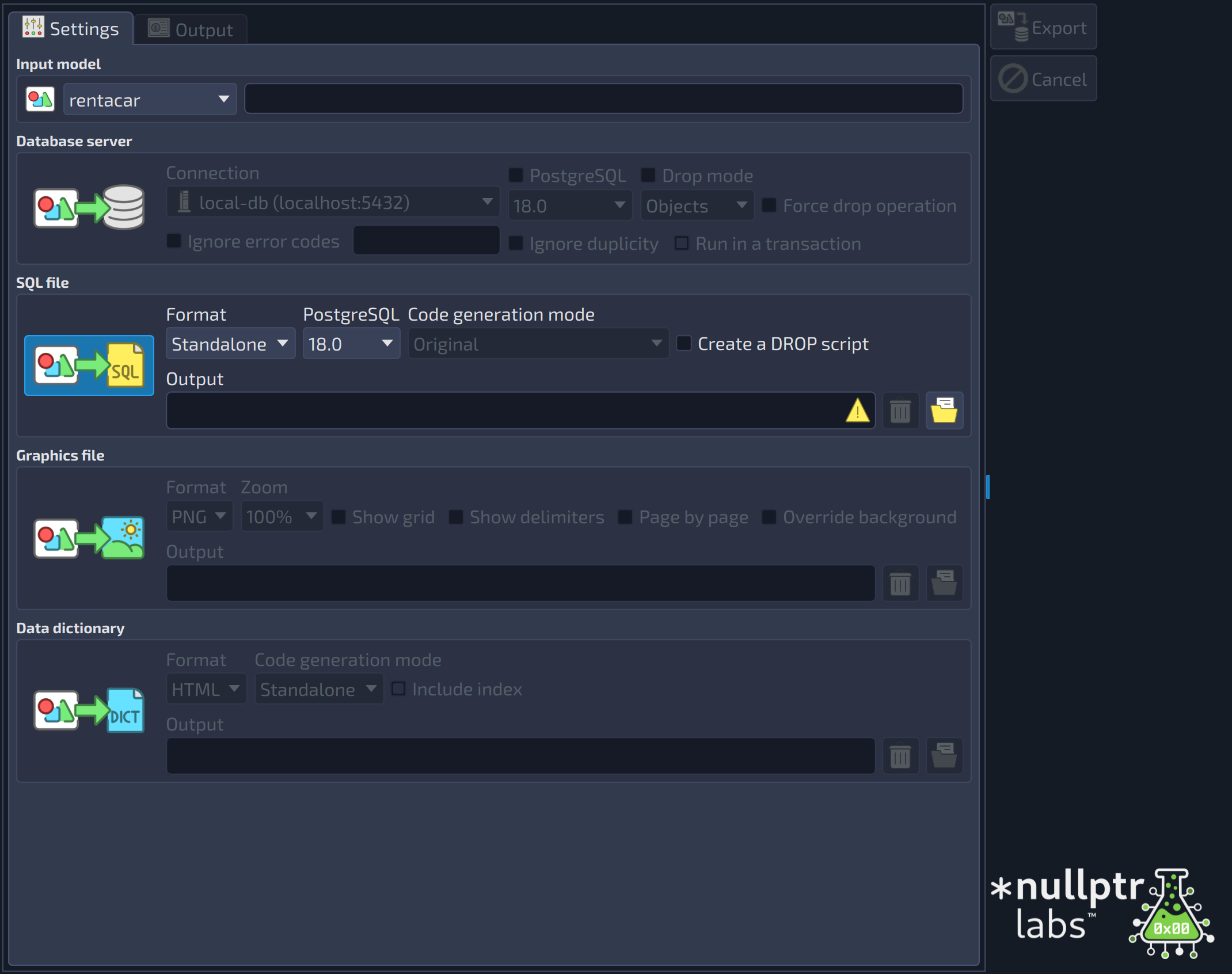 1234567
| SQL file | ||
|---|---|---|
| # | Field | Description |
| 1 | SQL file | Selects the export to a SQL file. When selected, only the fields of this group are used. |
| 2 | Format |
|
| 3 | PostgreSQL | The PostgreSQL version of the generated SQL file. Unlike the export to a database server, this option is mandatory here because pgModeler cannot identify the proper version only from the metadata of the model. |
| 4 | Code generation mode | Original: generates only the original SQL code for each object. The files will be named in such a way to reflect the correct creation order of the objects. Original + dependencies' SQL: generates the original code including all dependencies needed to properly create a single object. Original + children's SQL: generates the original code including all children's SQL code of a single object. This option is used only for schemas, tables, and views Group by object type: instead of creating a separate SQL file per object, groups the SQL code of all objects of the same type in a single file. |
| 5 | Create a DROP script | Create a separate script containing the DROP commands to destroy objects in the database. |
| 6 | Output | The output file, or directory (in |
| 7 | Select file | Opens a dialog to select the SQL file (or the directory, when the file is split). |
Export to PNG or SVG
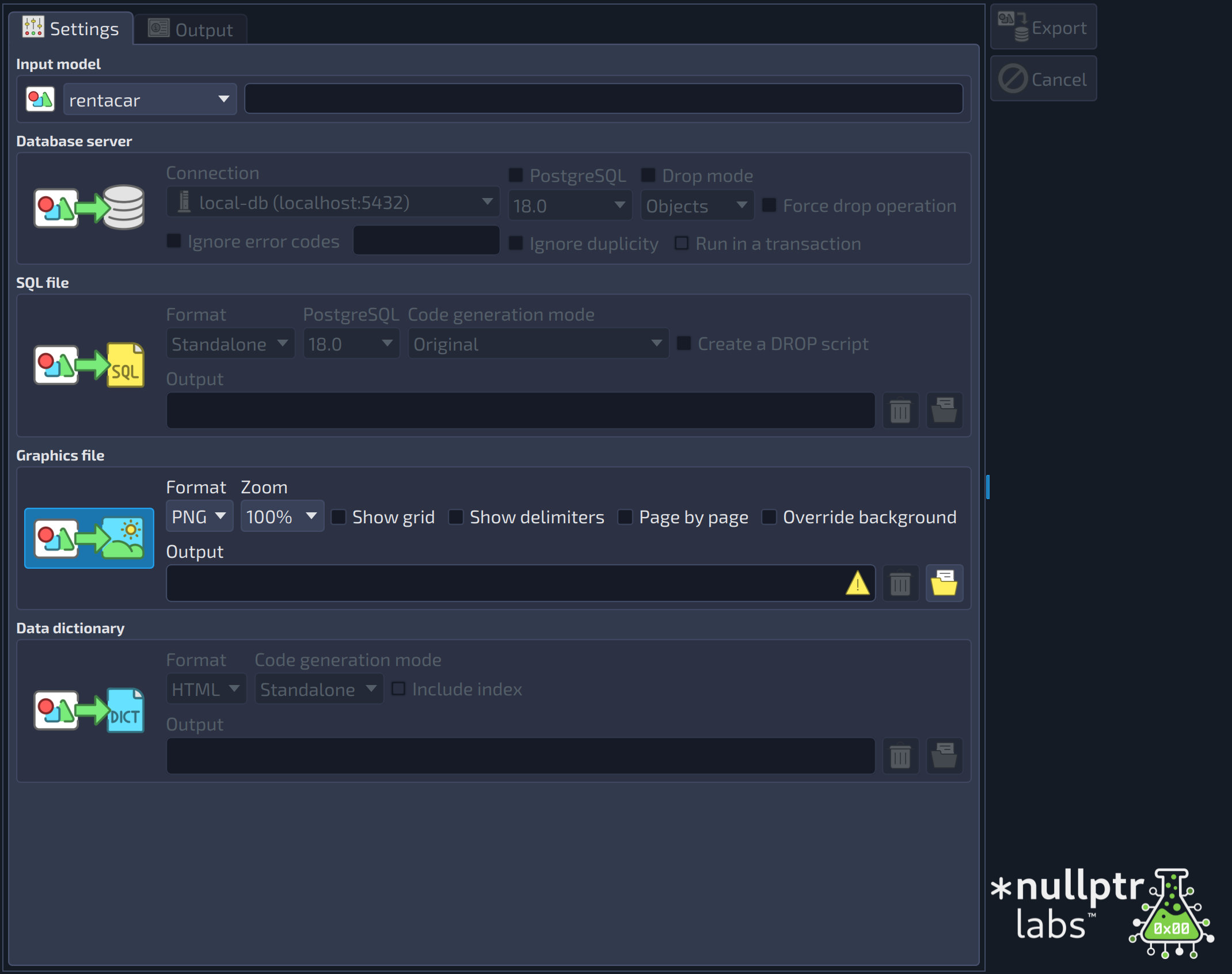 123456789
| Graphics file | ||
|---|---|---|
| # | Field | Description |
| 1 | Graphics file | Selects the export to an image (PNG or SVG). When selected, only the fields of this group are used. |
| 2 | Format | The type of graphics being generated: PNG or SVG. |
| 3 | Zoom | Applies a zoom factor before the image file is generated. It is useful to create a high resolution PNG file by using a zoom factor greater than 100%. It is enabled only for PNG. |
| 4 | Show grid | Includes the grid in the output image. |
| 5 | Show delimiters | Includes the page delimiters in the output image. |
| 6 | Page by page | Exports the model page by page, generating files with a |
| 7 | Override background | Ignores the background color of the canvas and sets the background of the exported image to white, so the file is ready to print. By default, the background of the image follows the color of the canvas, which may not be desirable if the image is meant to be printed. It is enabled only for PNG. |
| 8 | Output | The output file, which will store the graphical representation of the model. |
| 9 | Select file | Opens a dialog to select the image file. |
Export to data dictionary
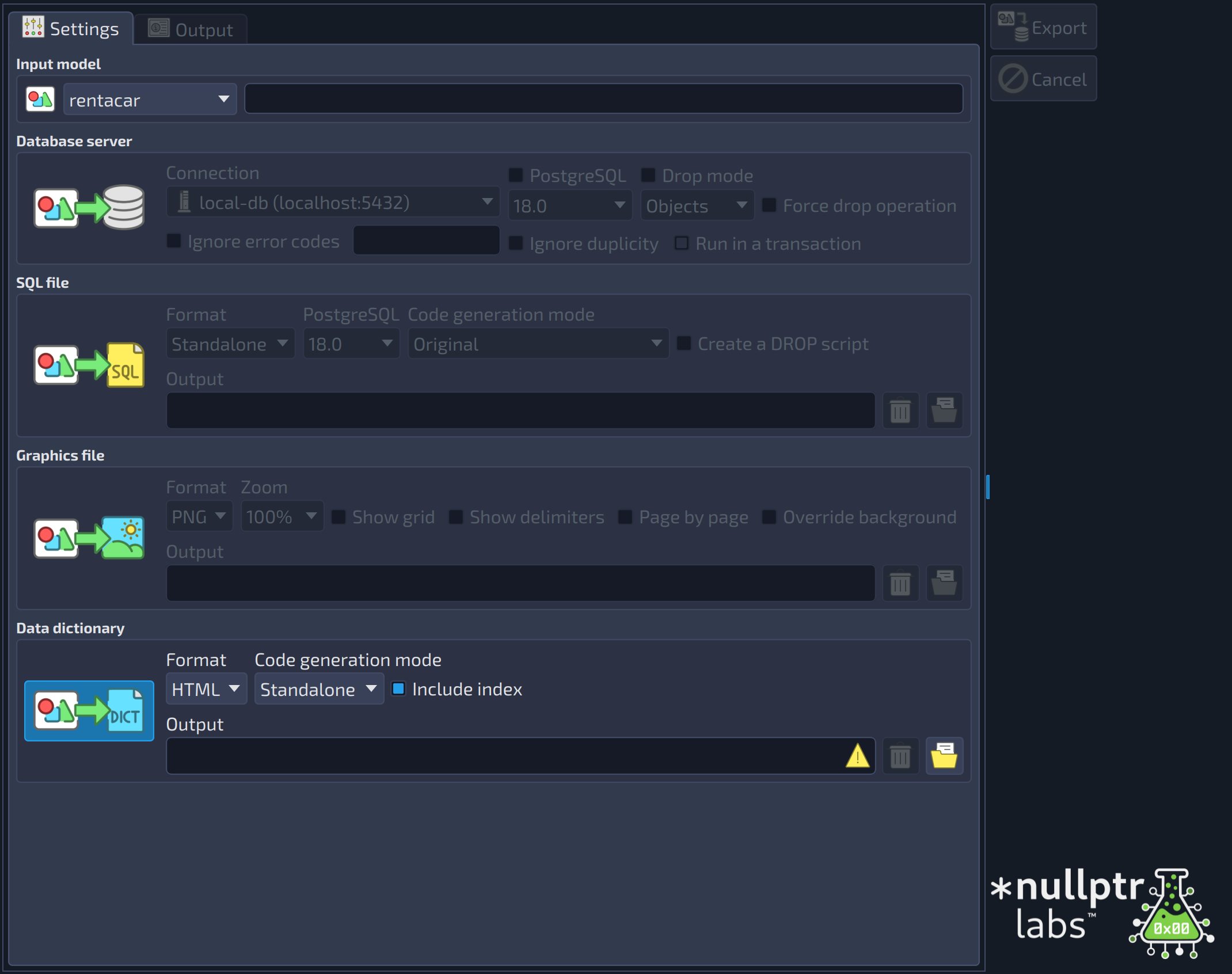 123456
| Data dictionary | ||
|---|---|---|
| # | Field | Description |
| 1 | Data dictionary | Selects the export to a data dictionary. When selected, only the fields of this group are used. |
| 2 | Format | Read-only preview of the data type as it is written in the SQL code, with length, precision, dimension and other modifiers applied. |
| 3 | Code generation mode |
|
| 4 | Include index | Generates an index to help navigate through the data dictionary. In |
| 5 | Output | The output file, or directory (in |
| 6 | Select file | Opens a dialog to select the data dictionary file (or the directory, when it is split). |
Once selected the export mode and configured all desired options, you just need to click the Export button  and wait for the progress in the Output tab. If no error was raised, you can close the dialog or start a new exporting process.
References
PostgreSQL Error Codes
https://www.postgresql.org/docs/current/static/errcodes-appendix.html