5.3. Compare model and database
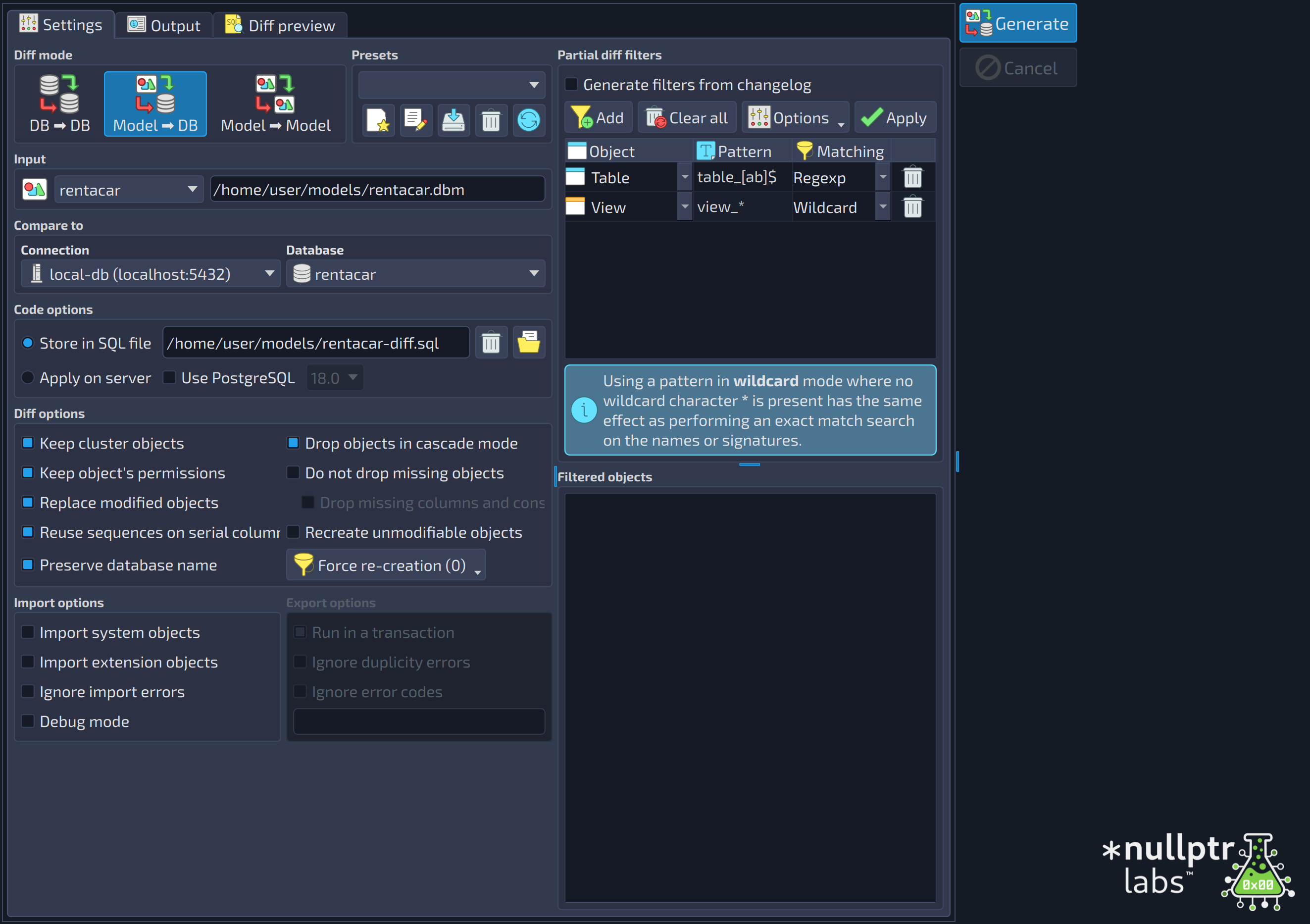
The comparison or diff process in pgModeler consists of generating a set of SQL commands that will make both the model and database synchronized. The tool can also compare two databases or two models (diff modes DB → DB, Model → DB and Model → Model). In the model-to-database mode, the comparison is made from the model to the database, meaning that any object existing in the model and absent in the database will be created. By the same logic, any object absent in the model and present in the database will be destroyed in the latter. The key idea here is that the model is the main reference, meaning that any change made directly to the database that is not reflected in the model will be undone by the generated script. This is useful to keep the model always up-to-date because the user needs to alter that one first and then apply the changes to the database.
The process itself is quite simple: first, pgModeler will generate a temporary model based on the database to be compared using the reverse engineering feature. Once the model is generated, it's time to compare the objects from the input model (the reference) and the ones present in the temporary one. Any detected difference is stored and processed later, resulting in a set of SQL commands that may create new objects, destroy old ones, or just alter the structure of the current ones. When the comparison finishes, the commands are ready to be applied to the database. At this point, depending on the settings defined by the user, the generated commands will be saved in a file or exported directly to the server. In the case of exporting to the server, the user will be prompted to proceed with the irreversible changes to be made to the database. Before confirming the modifications, it is highly recommended to make a backup of the database in case something goes wrong.
The diff dialog has a huge set of options, and depending on each scenario, you can save the current options in presets for reuse whenever needed. This is useful when you need to run the diff process in every stage of software development, for example, development, staging, and production. At each of these stages, you may use different diff settings depending on your needs. For instance, in development and staging, you can force the recreation of objects or even drop objects in cascade mode, but the same options should not be used in production for safety reasons. So, with this feature, pgModeler allows you to vary the options used in the diff for different contexts.
Finally, the model-database diff dialog options may affect how the resulting commands are generated as well as their semantics. You seldom need to change their values, but in a few cases, the default settings can't generate the diff as expected, so you'll need to tweak them to achieve the desired result. Below, all available options are fully described.
Bear in mind that this feature is still in an experimental state and may produce false-positive results or extra/redundant code in the final code, but these issues are being fixed gradually. Another limitation of the diff process is that the renaming of an object in the model can't be detected, and instead of issuing an ALTER ... RENAME command on the diff script, the object with the old name will be dropped, so be extremely careful when doing diffs!
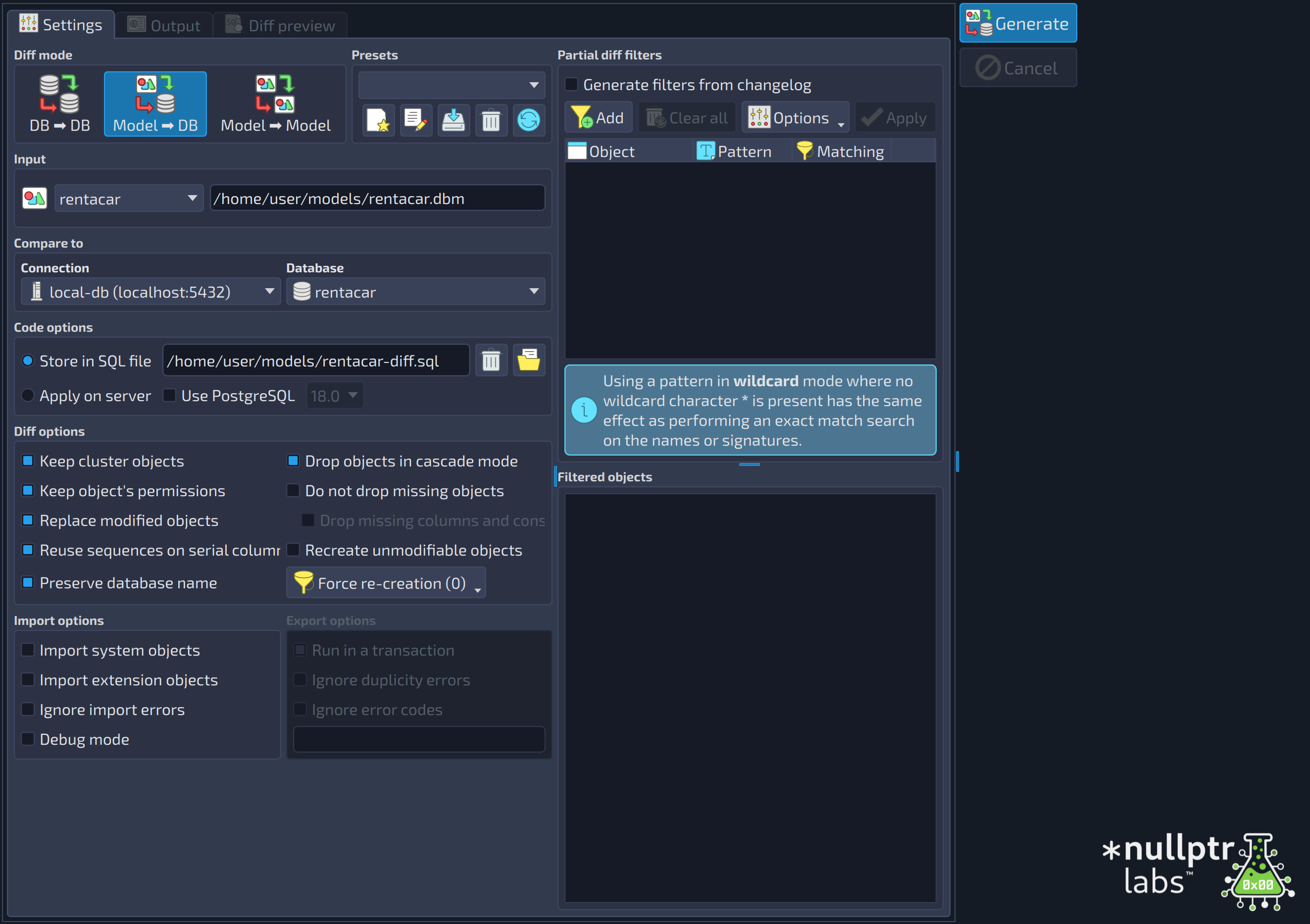 12345678910111213141516171819202122232425262728293031323334353637383940414243444546
| Diff | ||
|---|---|---|
| # | Field | Description |
| 1 | Generate | Starts the diff process with the configured options. |
| 2 | Cancel | Cancels the diff process in progress. |
| Diff mode | ||
|---|---|---|
| # | Field | Description |
| 3 | DB ➡ DB | Diff mode that compares two databases. The first one is selected in the group |
| 4 | Model ➡ DB | Diff mode that compares a model, loaded in the application, against a database. This is the default mode. |
| 5 | Model ➡ Model | Diff mode that compares two models loaded in the application. The first one is selected in the group |
| Presets | ||
|---|---|---|
| # | Field | Description |
| 6 | Presets list | Lists the loaded diff presets. A preset stores the options configured in the dialog. |
| 7 | Add new preset | Triggered by the shortcut |
| 8 | Edit preset name | Triggered by the shortcut |
| 9 | Save preset | Triggered by the shortcut |
| 10 | Delete the selected preset | Triggered by the shortcut |
| 11 | Restore the default presets | Triggered by the shortcut |
 , this action starts the saving of a new preset with the options currently checked in the dialog.
 , this action renames the selected preset.
 , this action saves the options currently selected in the form into the selected preset.
 , this action deletes the selected preset.
 , this action restores the default presets, deleting all the user-defined presets.
| Partial diff filters | ||
|---|---|---|
| # | Field | Description |
| 12 | Generate filters from changelog | Generates the partial diff filters from the changelog of the model, instead of typing them: the model's changelog is queried and the modification date/time of the entries is compared against the configured date/time interval. |
| 13 | Add | Add a new filter (Ins) |
| 14 | Clear all | Clear all the configured filters (Shift+Del) |
| 15 | Options | Menu with the options of the filters: |
| 16 | Apply | Applies the filters and lists, in the grid Filtered objects, the objects that match them. |
| 17 | Filters | The filters of the partial diff. Each row has the object type, the pattern, and the matching mode. |
| Input | ||
|---|---|---|
| # | Field | Description |
| 18 | Current model | The working database model used as input for the diff process. |
| 19 | Model file | The file of the model selected as input (read-only). |
| Compare to | ||
|---|---|---|
| # | Field | Description |
| 20 | Connection | Previously configured connection used as a communication channel to the server, where to look for the database compared against the input. It must use an account with permission to query the system catalogs and manage objects. |
| 21 | Database | The database that will be compared to the model or database selected in the group |
| Code options | ||
|---|---|---|
| # | Field | Description |
| 22 | Store in SQL file | Compares the model and the input database, storing the diff code in a SQL file for later usage. |
| 23 | SQL file | The SQL file where the diff code is stored, when |
| 24 | Select file | Opens a dialog to select the SQL file. |
| 25 | Apply on server | Compares the model and the input database, generating the diff code and applying it directly to the latter. This mode causes irreversible changes in the database and, in case of failure, the original structure is not restored, so make sure to have a backup before proceeding. |
| 26 | Use PostgreSQL | Overrides the PostgreSQL version used to generate the diff code. By default, the version of the input database is used (detected automatically). |
| 27 | PostgreSQL version | The PostgreSQL version used to generate the diff code. It is enabled when |
| Diff options | ||
|---|---|---|
| # | Field | Description |
| 28 | Keep cluster objects | Database cluster-level objects, such as roles and tablespaces, are not dropped. |
| 29 | Drop objects in cascade mode | The objects that depend on an object to be dropped are dropped too ( |
| 30 | Keep object's permissions | The permissions already set on the database objects are kept. The permissions configured in the model are applied to the database. |
| 31 | Do not drop missing objects | Avoids the generation of |
| 32 | Replace modified objects | If an object flagged as changed supports the |
| 33 | Drop missing columns and constraints | Forces the generation of |
| 34 | Reuse sequences on serial columns | Serial columns are converted into integer columns and have their default value changed to a call of the |
| 35 | Recreate unmodifiable objects | Recreates, with a combination of |
| 36 | Preserve database name | No command to rename the destination database is generated, even if the name of the model differs from the name of the database. |
| 37 | Force re-creation | This special button |
| Filtered objects | ||
|---|---|---|
| # | Field | Description |
| 38 | Filtered objects | The objects selected by the filters of the partial diff, when they are applied. |
| Import options | ||
|---|---|---|
| # | Field | Description |
| 39 | Import system objects | Import system (built-in) objects. Use this if the import step is returning errors related to missing objects. |
| 40 | Import extension objects | Import objects created by extensions. Use this if the import step is returning errors even importing built in ones. |
| 41 | Ignore import errors | Ignores as many as possible errors on import step. This option generates an incomplete diff. |
| 42 | Debug mode | All catalog queries and the created objects' source code are printed on the standard output (stdout) and the Debug tab. |
| Export options | ||
|---|---|---|
| # | Field | Description |
| 43 | Run in a transaction | Run the generated commands in a single transaction block. In case of errors, all changes are rolled back. NOTE: This option may raise errors if the diff code contains DDL commands related to database and tablespaces. |
| 44 | Ignore duplicity errors | Ignores errors generated by duplicated objects when exporting the diff to database. NOTE: this option disables the transactional mode. |
| 45 | Ignore error codes | This advanced option causes pgModeler to ignore extra errors by their numeric codes. These errors must be informed in the input below and separated by space. For the complete list of error codes check the PostgreSQL docs, section Appendix A. PostgreSQL Error Codes. WARNING: use this option with extreme care since it can interfere in final export result. NOTE: this option disables the transactional mode. |
| 46 | Error codes | The error codes to be ignored, separated by spaces. It is enabled when |
When the diff mode is DB → DB, the group Input shows the fields Connection and Database instead of the model selector: choose a connection to browse the desired database and, once connected to the server, the combo box Database lists all the available databases. Note that the credentials configured in the selected connection must have the needed permissions to query the system catalogs and manage objects, or the process will certainly fail.
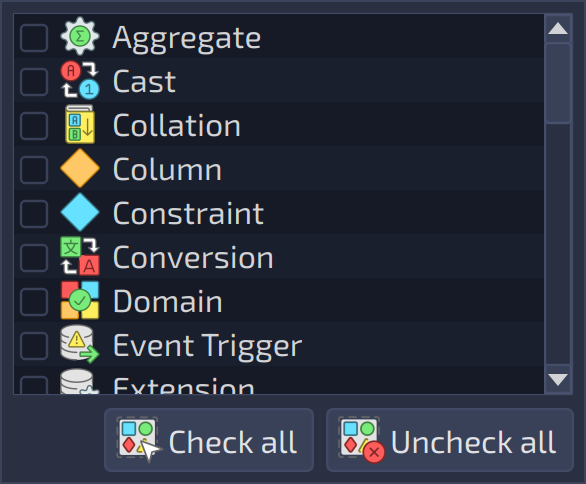
The button Force re-creation  (the number in parentheses is how many object kinds are checked) opens the list of object kinds that must be re-created instead of altered: for the checked kinds, a
 DROP followed by a CREATE is generated in place of the ALTER commands. This option does not affect the database objects themselves.
The options available in the tab Import & Export are the same ones used by the import and export processes, so the details about them can be seen in the previous sections in this chapter. After configuring the desired options, you can start a diff process by hitting the button Generate  . The whole process can take a long time due to the number of comparisons done and the size of the involved model and database. Unlike the import, the diff dialog will not be closed automatically at the end of the process because the user can compare other databases to the model using the current settings.
Partial diffs
This feature consists of taking an input database or model, applying user-provided filters, and diminishing the number of objects to be compared. This brings us a significant gain in speed in the whole comparison process because only a subset of the database/model will be handled. The partial diff has two ways of filtering objects: 1) through the user-provided filters like the ones used in the reverse engineering; 2) by using the database model changelog to filter automatically the modified objects.
To use the partial diff through manual filtering, there's a need to specify a set of object filters composed of the object type and a search pattern (wildcard string or regular expression). Once all the filters are set, it's time to retrieve the objects matching them, which is done by clicking Apply in the filter widget. All matching objects will be listed in the Filtered objects grid, in the Partial diff filters panel at the right of the Settings tab. Now, just click Generate to start the partial diff process.
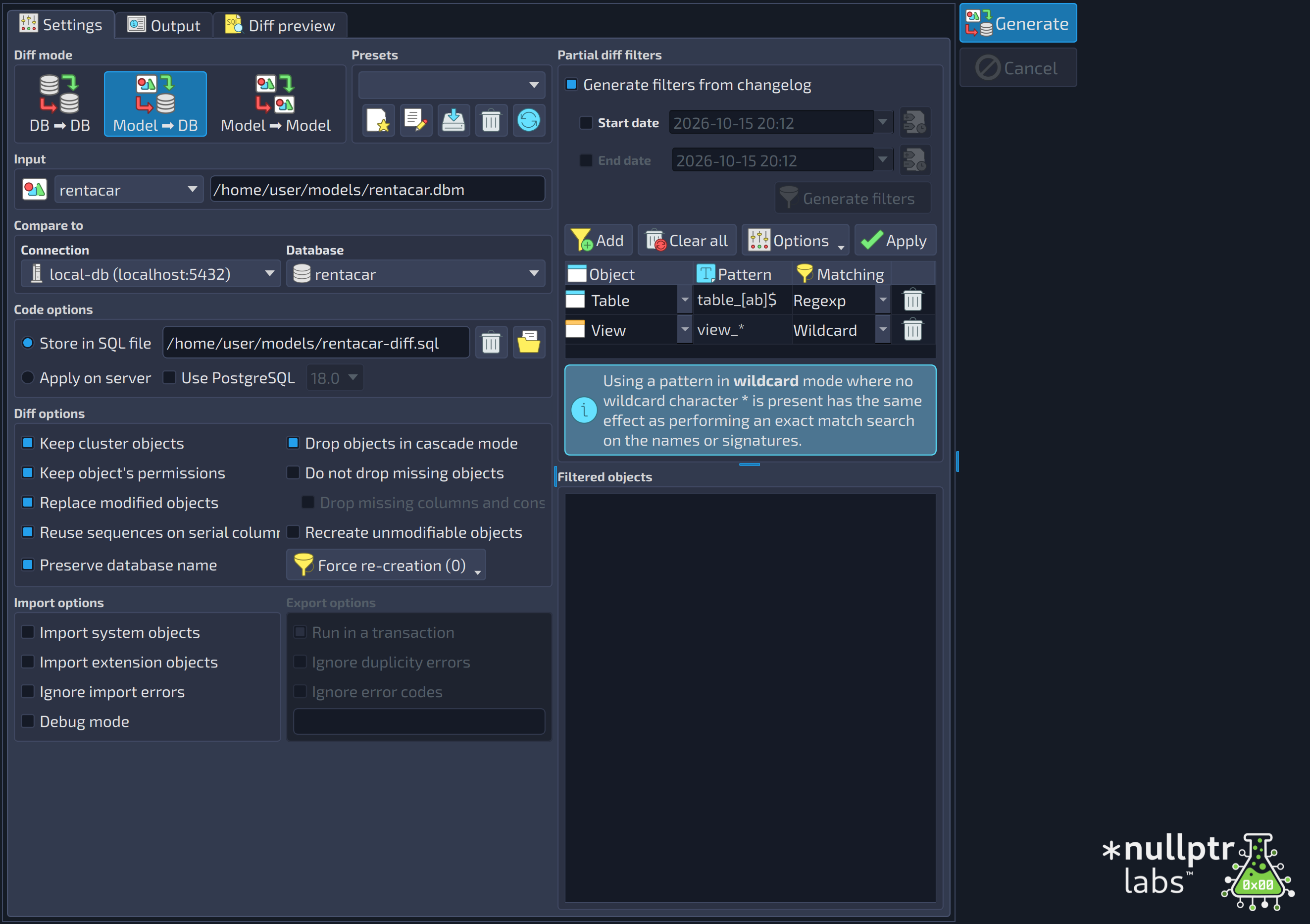
Now, to use the filtering based on the model's changelog, one needs to check the option Generate filters from changelog, and the filter widget will display the fields as shown in the image below. After that, the user just needs to specify a date/time interval that will be matched against the changelog, click the button Generate filters , and then retrieve the modified objects by clicking Apply. Internally, pgModeler generates, based on the objects found, filters like the ones in the image below using object signatures as the filter patterns. These filters are then used in the whole partial diff process so that the correct result can be produced.
 12345
12345
| Partial diff filters | ||
|---|---|---|
| # | Field | Description |
| 1 | Generate filters from changelog | Generates the partial diff filters from the changelog of the model, instead of typing them: the model's changelog is queried and the modification date/time of the entries is compared against the configured date/time interval. |
| 2 | Start date | When checked, only the changelog entries recorded from the given date and time on are used to generate the filters. |
| 3 | End date | When checked, only the changelog entries recorded up to the given date and time are used to generate the filters. |
| 4 | Generate filters | Generates the filters from the entries of the model's changelog within the configured date range. It is enabled only when |
| 5 | Apply | Applies the filters and lists, in the grid Filtered objects, the objects that match them. |
Despite the huge improvement in the diff operation with the partial comparison, the process still has its deficiencies. For instance, the diff isn't able to detect objects moved between schemas, for example, schema_a.table moved to schema_b.table; in this case, the diff will always understand that schema_a.table was dropped and schema_b.table was created.