6.12. Objects metadata handling
The objects' metadata handling feature, available as the tool Objects' metadata of the Fix view, comes as a workaround for a limitation of pgModeler. We call metadata all the attributes of objects or even whole objects that aren't converted into SQL code, existing only during design time. Examples of these metadata are tags assigned to tables, textboxes used for general documentation, objects' positioning information, relationships' colors and custom points, generic SQL objects, and some others.
This feature exists due to the following scenario: suppose that you have a fully detailed model with relationships organized by custom points and colors, textboxes being used as small documentation, tables graphically separated by the use of tags, and a set of generic SQL objects which hold some specific code for your database that is being created. Let's then assume that we've exported that model to a PostgreSQL server, so far so good. Now, for some reason, you started to make additions to your database (that one generated from the model), without worrying about updating the original model. You've created a situation where the model is quite outdated compared to the database. But now you need an updated model of that database, so you have to resort to reverse engineering to get the new model. Of course, the reverse engineering feature is powerful enough to reconstruct the database on its most recent version, but all those objects used to make custom documentation and styles of the original model are lost, and you need them too. Since pgModeler still can't compare a database against a model, updating the latter based on the first, there's no easy way to restore the objects' positions, colors, documentation, and tags on the new model. Remember that the inverse comparison, model against a database, is completely possible by using the diff feature.
So, this is where the objects metadata handling comes into play. This feature copies all the metadata of an input model and applies it to another one. In our example, we use the oldest model as input, or, more precisely, the one from which we'll extract all metadata and apply it to our new database model (the most recent version of the database generated from reverse engineering). Note that the process matches the objects on the involved models by their names, so it's recommended to use models that are somehow related, for instance, one being an older version of the other. The whole process can be tweaked by the following form.
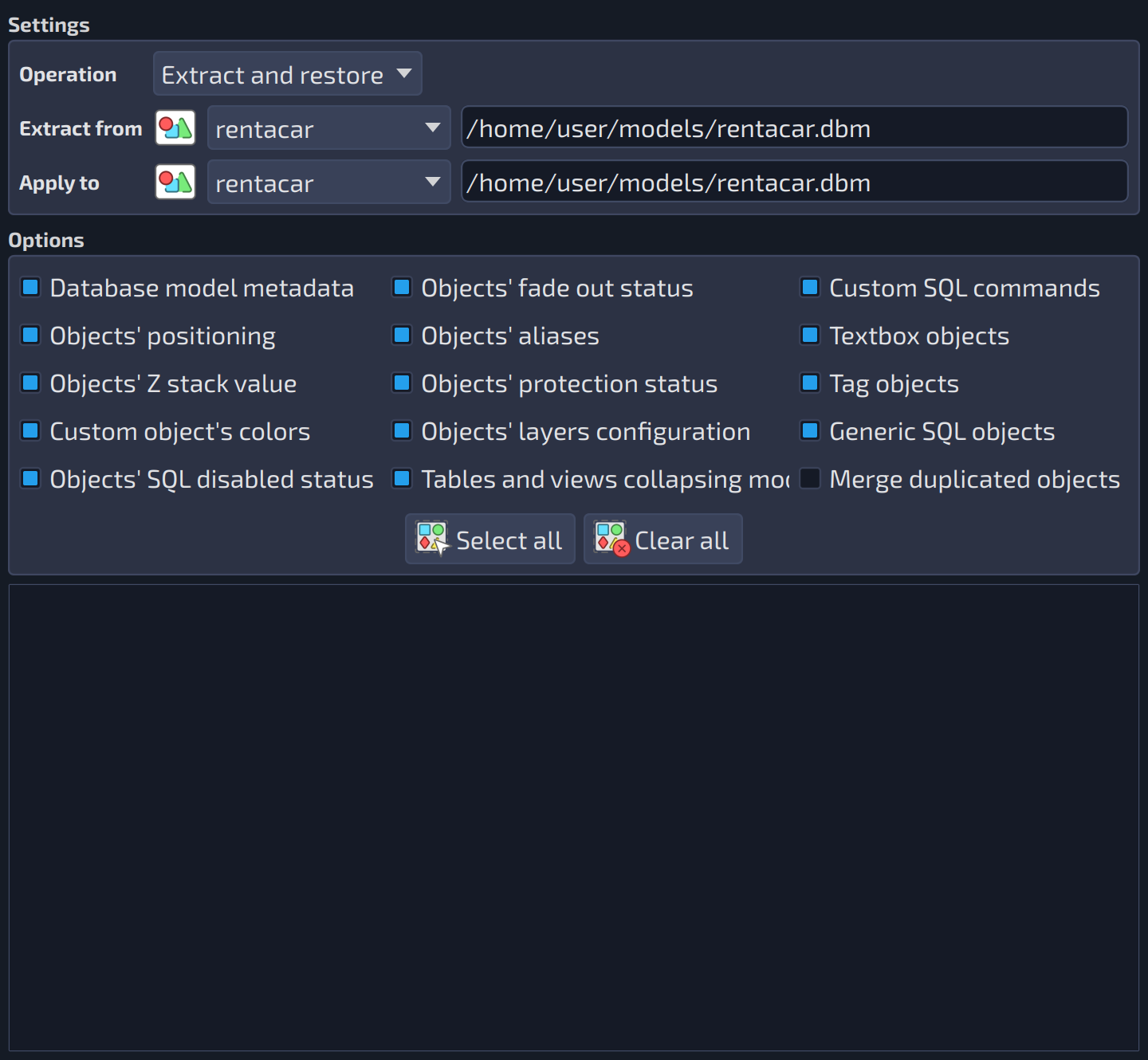 1234567891011121314151617181920212223
| Settings | ||
|---|---|---|
| # | Field | Description |
| 1 | Operation | The following operation modes are available:
Applying metadata to a model is an irreversible operation, so the modes that apply it ask for confirmation first. |
| 2 | Extract from | The database model from which all the metadata is extracted. This list holds all the database models currently loaded in the Design view. |
| 3 | Extract from (file) | The file of the model selected in |
| 4 | Apply to | The database model that receives the metadata extracted from the model specified in |
| 5 | Apply to (file) | The file of the model selected in |
| Options | ||
|---|---|---|
| # | Field | Description |
| 6 | Database model metadata | Handles the following database model attributes in the metadata file: author, zoom factor, last position, and default objects. |
| 7 | Objects' fade out status | Handles the objects' fade out status in the metadata file. |
| 8 | Custom SQL commands | Handles the objects' custom SQL commands in the metadata file. |
| 9 | Objects' positioning | Handles the objects' positioning in the metadata file. |
| 10 | Objects' aliases | Handles the objects' aliases in the metadata file. Only for graphical objects and tables' child objects. |
| 11 | Textbox objects | Saves the textboxes to the output file when the metadata is extracted. When the file is loaded, the textboxes are recreated and the duplicated ones are ignored. |
| 12 | Objects' Z stack value | Handles the objects' z stack value in the metadata file. |
| 13 | Objects' protection status | Handles the objects' protection status in the metadata file. |
| 14 | Tag objects | Saves the tags to the output file when the metadata is extracted. When the file is loaded, the tags are recreated and the duplicated ones are ignored. |
| 15 | Custom object's colors | Handles the objects' custom colors in the metadata file. Currently available only for relationships and schemas. |
| 16 | Objects' layers configuration | Handles the objects' layers attributes in the metadata file. |
| 17 | Generic SQL objects | Saves the generic SQL objects to the output file when the metadata is extracted. When the file is loaded, the objects are recreated and the duplicated ones are ignored. |
| 18 | Objects' SQL disabled status | Handles the objects' SQL disabled status in the metadata file. |
| 19 | Tables and views collapsing mode | Handles the tables' and views' collapsing mode in the metadata file. |
| 20 | Merge duplicated objects | The textboxes, tags, and generic SQL objects of the metadata file are merged into the ones that already exist in the database model. It is disabled in the |
| 21 | Select all | Checks all the options of the group. |
| 22 | Clear all | Unchecks all the options of the group. |
| Objects metadata | ||
|---|---|---|
| # | Field | Description |
| 23 | Output | Shows the progress and the results of the operation. |
| Field/Option | Description |
|---|---|
Backup file | The metadata file. In the mode Extract only, it is the file where the extracted metadata is saved; in the mode Restore a backup, it is the file the metadata is read from. It is not available in the mode Extract and restore, which uses a temporary file. |