8.2.1. Quick object editing
The quick object editing plug-in, triggered by Ctrl+1 in the canvas area, allows one to search for the desired object and open the related editing dialog without the use of mouse clicks. This is a well-known feature on many IDEs, and has arrived in pgModeler to improve the user experience, especially for those who prefer a keyboard over a mouse when working with object editing. Once the search field is open, just start typing the name of the object, and the matching results will be displayed. To select an object, hit the arrow down to focus the dropdown menu and navigate through the results. Once you find the desired object, hit Enter (or double-click it) to open the editing dialog for that object. While navigating through the results, the graphical objects selected in the list are highlighted in the model.
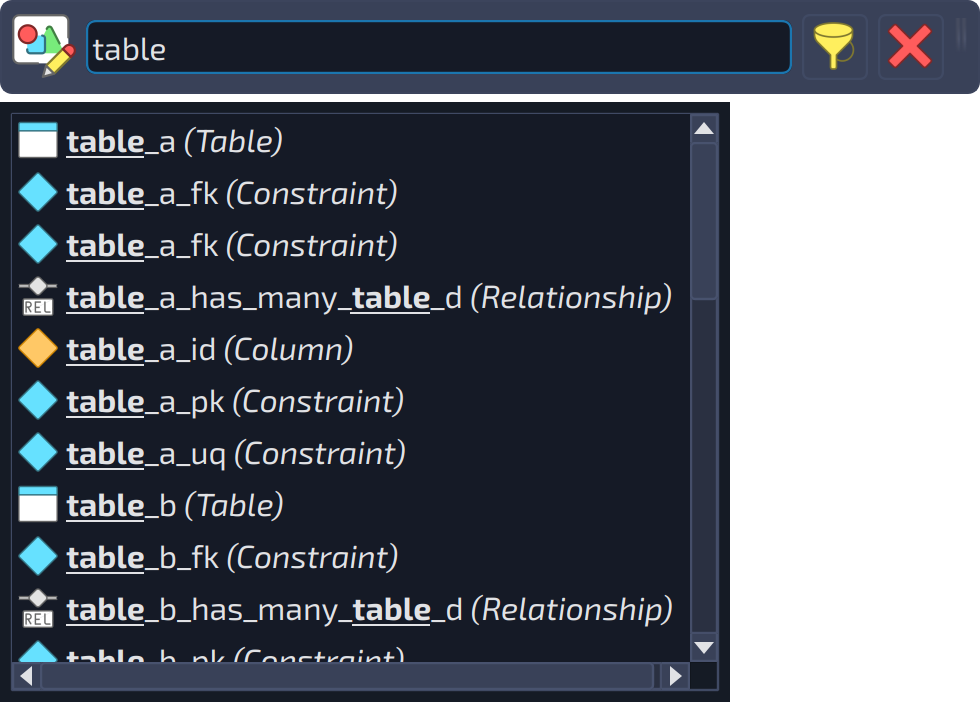
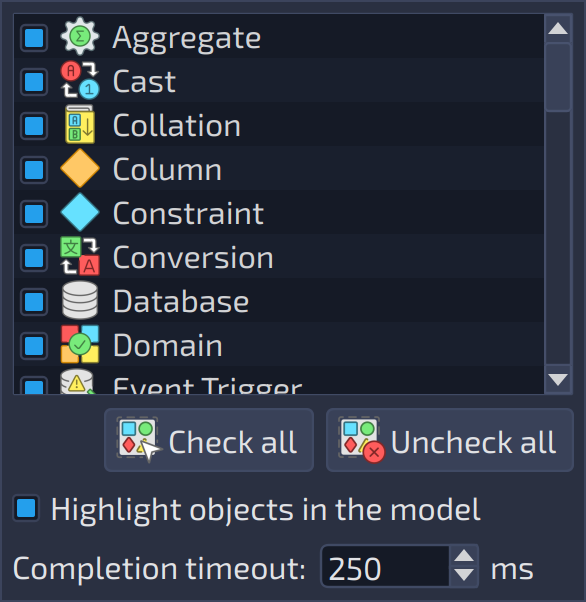
By default, all object kinds are listed in the search form, but it's possible to select only the ones you want to filter. This is useful, for example, if you are working on a heavily populated model but want to be able to quickly edit only a few kinds of objects. There are two ways to configure the object kind to be filtered. The first one is to click the action  in the search form so the object kinds list is displayed (see the image below). Just check or uncheck the items to determine which objects you want to display in the results; the buttons Check all
  and Uncheck all
  toggle all the items at once. The same menu has the option Highlight objects in the model, which toggles the highlighting of the objects selected in the results, and the field Completion timeout, the time, in milliseconds, that pgModeler waits after the last typed character before listing the results. Alternatively, you can access the quick edit plug-in configuration from the global plug-in configuration action
  in the main window.