8.2.3. Secure connection via SSH tunnel
An SSH tunnel is a technique widely used to encrypt a connection between a client and a server via the SSH application, providing a security layer for the connection even in the absence of an SSL certificate. The SSH tunnel plug-in comes as a facility to configure and start SSH tunnels quickly.
Currently, SSH tunnels can only be used with the official OpenSSH client. On Linux, the SSH client is available by default or, at least, on your preferred distro's software repository. On macOS, the secure shell command is available by default. Finally, on Windows, the OpenSSH client is offered as an optional software and can be installed by following these instructions.
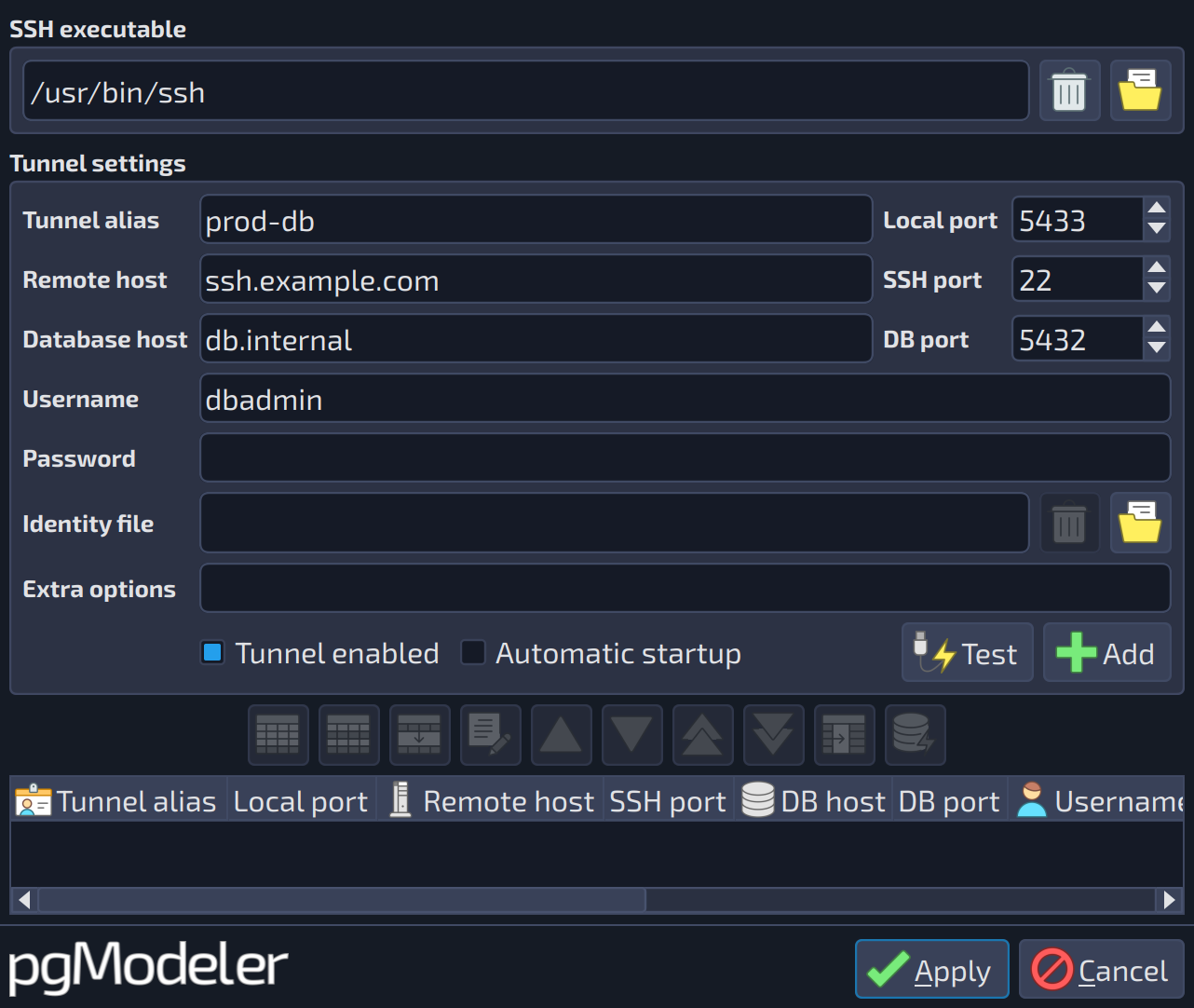
The fields in the form above are described as follows:
-
SSH executable path: the path to the SSH application used to initialize tunnels.
-
Tunnel alias: a unique identifier for the SSH tunnel.
-
Local port: the local host port number in which the configured tunnel will be started.
-
Remote host: the endpoint IP address or domain name for the SSH tunnel. This is the machine that is ready for SSH connections.
-
SSH port: the listening port in the remote host for SSH connections.
-
Database host: the PostgreSQL server IP or domain name to connect when the SSH tunnel is established. It can be the remote host itself or another machine address that is accessible from the remote host.
-
DB port: the database server listening port.
-
Username: the SSH username of the remote machine.
-
Password: the SSH password of the remote machine. If an identity file is used to connect to the remote host then this will be used as the identity file's security passphrase. Be aware that this field is only a convenience to avoid repeatedly typing the password during the tunnel initialization, use it with extreme care since it is saved as plain text in the settings. Also, ensure that only your user has access to pgModeler's configuration files since they store sensitive data that can be exploited.
-
Identity file: the file from which the identity (private key) for public key authentication is read. Refer to SSH documentation for more details.
-
Extra options: a list of arguments, separated by semicolons, that are passed to the SSH executable during tunnel startup. Refer to SSH documentation for more details.
-
Automatic startup: indicates that this tunnel must be started when pgModeler starts. It is configured per tunnel, so each one can have its own behavior (the column
Auto startupof the tunnels grid shows the choice). -
Tunnel enabled: enables or disables the tunnel configuration being edited. Disabled tunnels are kept in the settings but never started.
The buttons Add  (or Update
  , when a tunnel in the grid is being edited) put the configuration in the tunnels grid below the form, and Test
  tries to establish the tunnel with the typed parameters. Changes are only saved when the settings are applied with Apply.
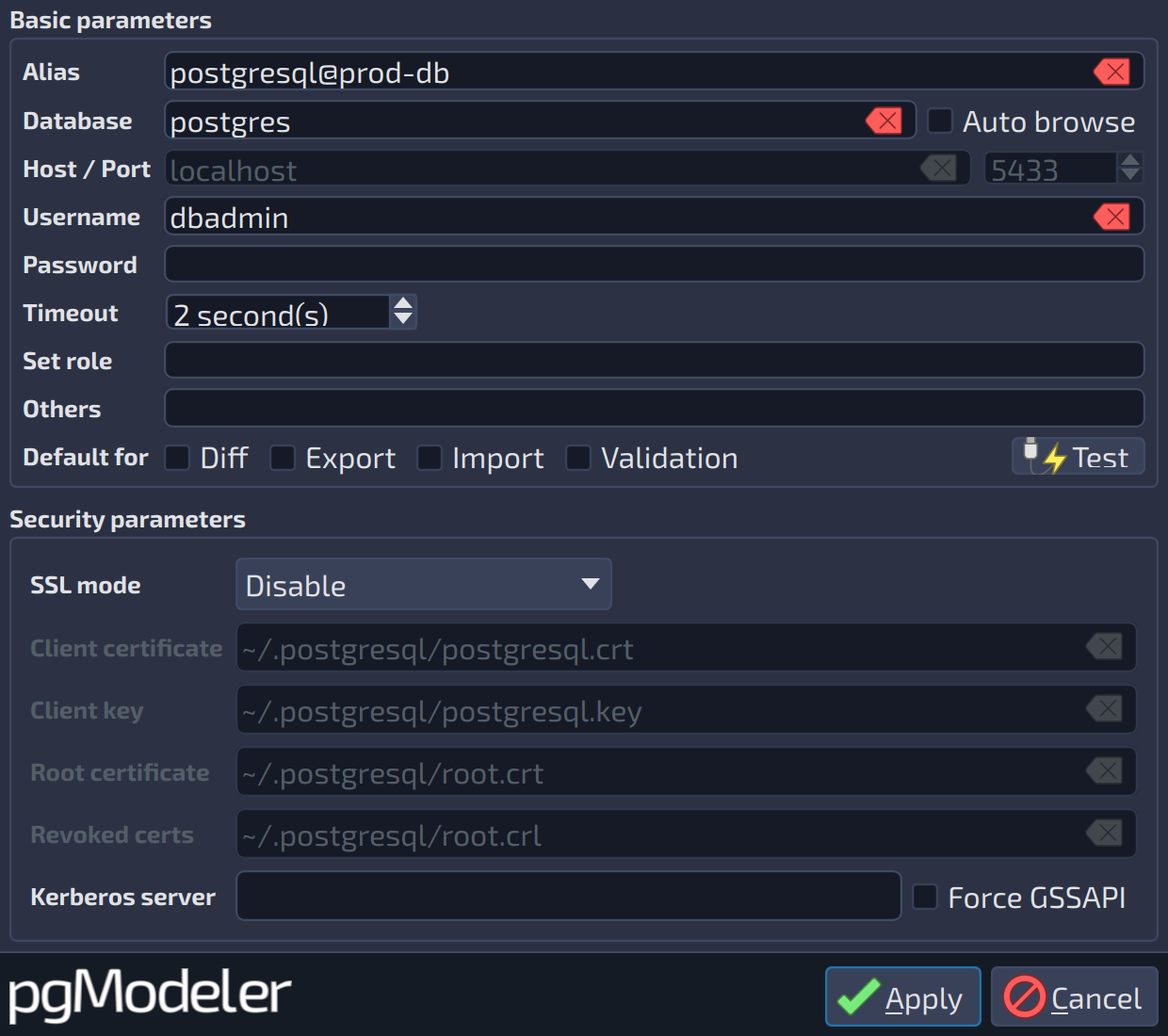
After configuring an SSH tunnel, you have to configure a database connection in such a way as to use the tunnel's database host combined with the local port so the encrypted connection can be established correctly. The plug-in offers a direct path to set up your database connection without repetitive configurations. Simply right-click on any selected tunnel in the configuration grid or use the dedicated connection button  , and the system will automatically generate a pre-configured connection for you.
You'll notice the connection form locks the host and port fields - this is because these parameters are already managed by the SSH tunnel, which creates a secure local port forwarding all traffic to your remote database server. This design not only prevents configuration errors but also reinforces security by ensuring all connections properly route through the encrypted tunnel. All you need to provide are the specific database name you want to access and your authentication credentials.
Finally, to start the configured SSH tunnels (if they aren't in auto-start mode), just hit  on the main window's top toolbar and wait for the tunnels initialization before connecting to a database. It's worth mentioning that despite the extra security that SSH tunnels offer, they can degrade the data transmission speed due to the overhead of encrypting and decrypting the data, so connecting to a database and running commands may take longer via a secure tunnel than performing the same operations directly on an ordinary database connection.
The button of the plug-in on the main window's top toolbar also reports the state of the tunnels. Its icon and tooltip tell whether no tunnel is configured (clicking the button opens the settings), the configuration is incomplete because no SSH executable is defined, or there are tunnels configured, in which case the tooltip shows how many are started and how many are stopped. The menu of the button lists every configured tunnel individually, each one with the action to start it or to shut it down (disabled or invalid tunnels are listed as unavailable), followed by the actions Startup all, Shutdown all, and Settings.
WARNING: Connections' passwords are stored in plain text format in the settings. To avoid security issues, make sure to protect the access to the directory where pgModeler settings are saved in the local user's storage (OS-dependent) from users other than the one running the tool. There are plans to encrypt stored passwords in future releases.