8.3. Translating the user interface
Translating pgModeler's user interface requires using three tools called lupdate, linguist, and lrelease, all of which are part of the Qt framework (the Qt Linguist Tools component). The lupdate command will scan pgModeler's source code directory, extracting the terms that can be translated and storing them in a file called dictionary (.ts). The linguist program is used to open the dictionaries generated by lupdate and provide the translation of the terms present in those files. Finally, we use the lrelease to generate a compiled version of the translated dictionaries (.qm) to be interpreted by pgModeler at startup. Since version 2.0, lupdate and lrelease are run by pgModeler's build system (CMake), so you don't need to call them directly. A few steps must be executed in a specific order to achieve the correct result:
-
Use the most recent version of pgModeler's source code. You can get it from the download page.
-
Configure the build as usual (see the installation instructions), making sure the Qt Linguist Tools are installed. Without them, the build warns that the translations will not be compiled and the target used in the next step is not available.
-
The dictionaries are stored in the folder
assets/langand are named in the form[language]_[TERRITORY].ts(or just[language].ts), which is similar to the locale information used by POSIX systems, likept_BR.tsorfr.ts. If your language already has a dictionary there, skip to step 4. Otherwise, generate it by running the build targetupdate_ts, informing the language code in the variablePGM_TS_LANG(several codes can be informed, separated by semicolons):PGM_TS_LANG=fr_FR cmake --build build --target update_ts. The same command updates an existing dictionary after the source code changes: terms already translated are preserved, new terms are added, and terms that no longer exist are kept as obsolete. The language can also be set when configuring the build, with-DPGM_TS_LANG=fr_FR. -
Once the dictionary is generated, we need to open it in the Qt Linguist application. To do so, run the command:
linguist assets/lang/[language]_[TERRITORY].ts -
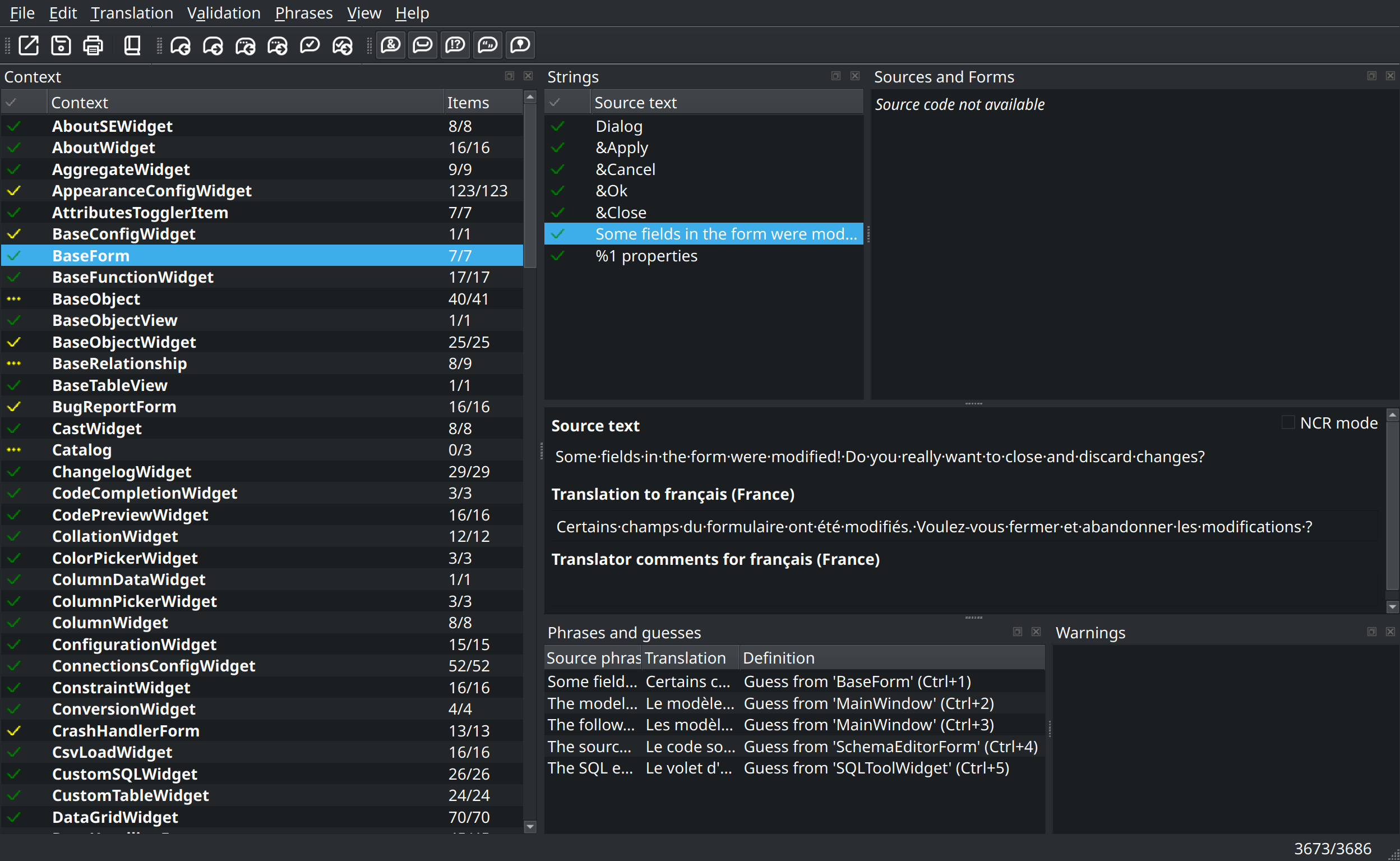
After opening the file in Qt Linguist, a dialog like the one below will be displayed. Now the hard work begins: you need to translate term by term based on the
Source textfield. The translated term must be entered in theTranslation to [language]field, right below it (in the image below, the French translation of a message of the BaseForm context). Finally, you can provide optional comments in the fieldTranslator comments. You can get detailed information about Qt Linguist usage in the Qt documentation.
- Finally, build and install pgModeler again (
cmake --build buildandcmake --install build). The build compiles every dictionary ofassets/langinto a.qmfile named after the language (for instance,fr_FR.qm) and the installation puts them in pgModeler's language folder.
You can now test the generated dictionary for your native language by normally running pgModeler. The languages offered in the General settings are the .qm files found in the language folder. If, for any reason, you notice that the translation is not being correctly loaded, you must check your system's current language configuration or manually change the language at pgModeler's general settings. Additional guidance and advanced information about the topics described in this chapter can be retrieved directly from pgModeler's author via the available support channels.
References
Qt Linguist manual
http://doc.qt.io/qt-6/qtlinguist-index.html